On a phone
How the chart is laid out on a narrow screen, where the controls moved to, and what stays on the desktop.
When the browser window is 768 pixels wide or narrower — a phone, or a small window on a computer — the chart switches to a single-panel layout built for touch. Your saved layout is not changed: a layout with several panels shows its first panel here and all of them again on a wider screen.
The three bars
The top bar shows the symbol, a star to add it to your favourites, the price, and a status dot that changes colour when the data stops being live (Data status explains the states). For candles and footprint the price is the last trade, with the change since the current bar opened; for a heatmap it is the middle of the order book. Tap ☰ at the left to open the menu.
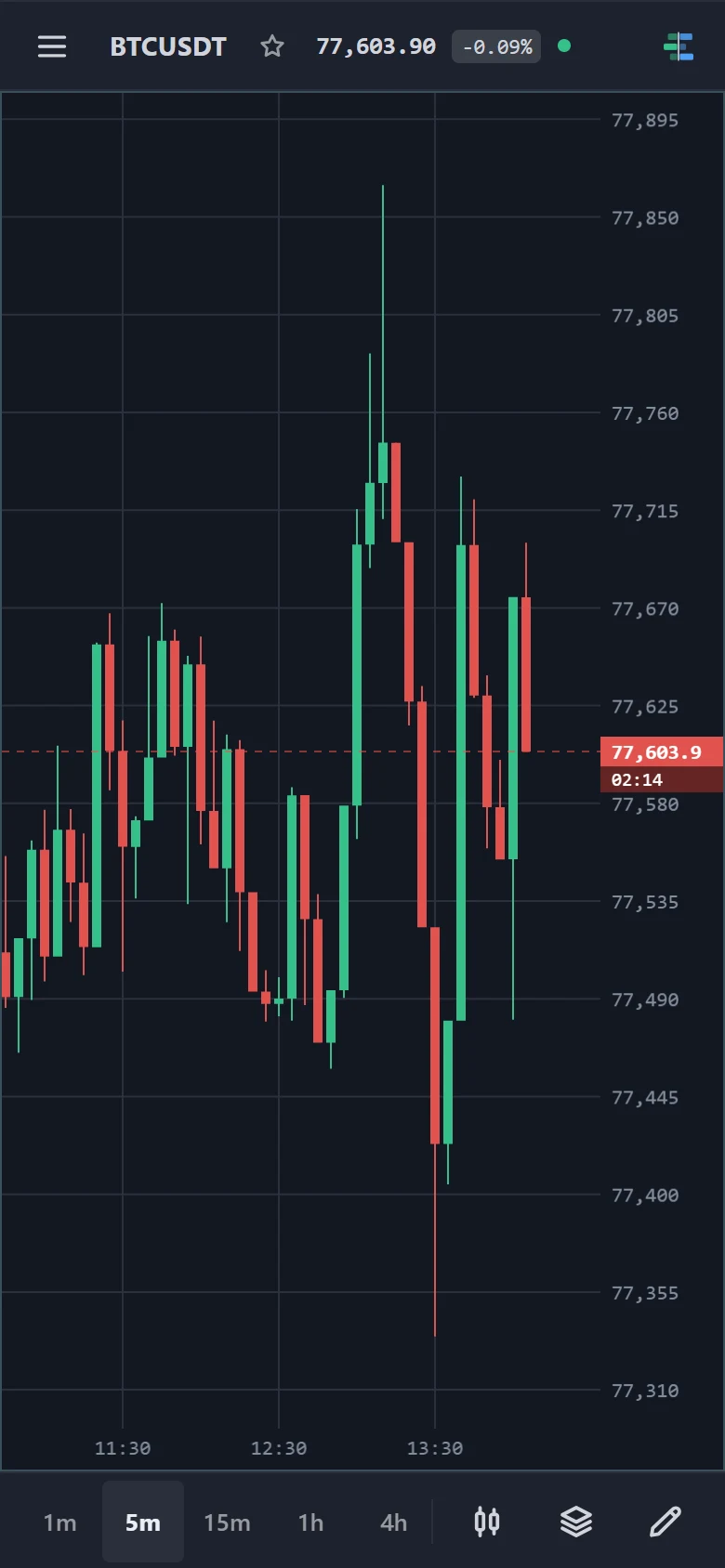
The chart fills the middle. It does not list the panel's indicators the way a wider screen does — the indicator list is in the menu — and Scroll to realtime appears when you have scrolled away from the newest bar. Drag with one finger to move, pinch to zoom.
The bottom bar holds what you change most often:
- the quick timeframe buttons — or the ranges, on a heatmap;
- a button for the Chart type menu;
- a button that opens the indicator list in the menu;
- a pencil that swaps the bottom row for the drawing tools.
The menu
Tap ☰ to open it.
- TapeHawk — links to the home page, the chart and these docs (in a new tab), sign in or sign out, and the language.
- Chart — Instrument (search and pick a symbol), Favourites, Timeframe or Range, and Chart type.
- Layouts — your saved layouts, when you are signed in.
- Indicator — the same list as the desktop indicator menu.
Drawing on a phone
Tap the pencil in the bottom bar. The drawing tools, the magnet and Clear all objects appear in a strip; tap a tool, then tap the chart for each point it needs. Handles are larger than on the desktop so a finger can grab them. Tap the pencil again to bring the timeframe buttons back.
What stays on the desktop
A phone shows one panel and keeps the controls that fit. These are only on a wider screen:
- layouts with more than one panel;
- the sidebar tabs — Details, Data window and Alerts (favourites are in the menu);
- Bar replay, and the paper trading that runs inside it;
- the Settings popover — colours, timezone, heatmap and footprint settings;
- the alert bell, and creating an alert by right-clicking the chart;
- the list of drawing objects, used to show hidden objects and unlock locked ones.