Custom indicators overview
Write your own indicator as a short script — who can, where the editor is, saving and deleting, and how your indicator is drawn and set on a panel.
A custom indicator is one you write yourself, as a short script in TapeHawk's indicator language. TapeHawk's server checks the script and compiles it; saved, it is kept on your account and appears in the indicator menu of every panel, next to the indicators TapeHawk ships.
Writing indicators needs a confirmed account — see Access levels.
Opening the editor
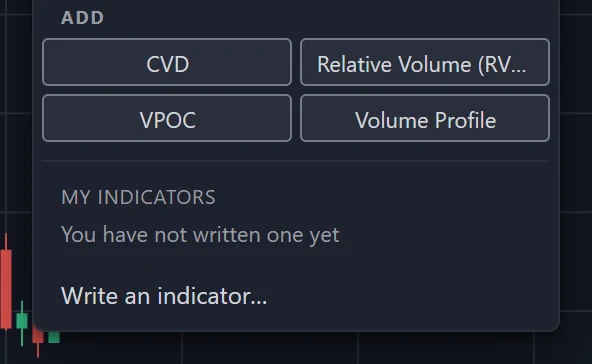
Open the Indicator menu of a panel — or, on a phone, the drawer — and choose Write an indicator… at the bottom. The My indicators dialog opens with a two-line starter script already drawn on the active panel.
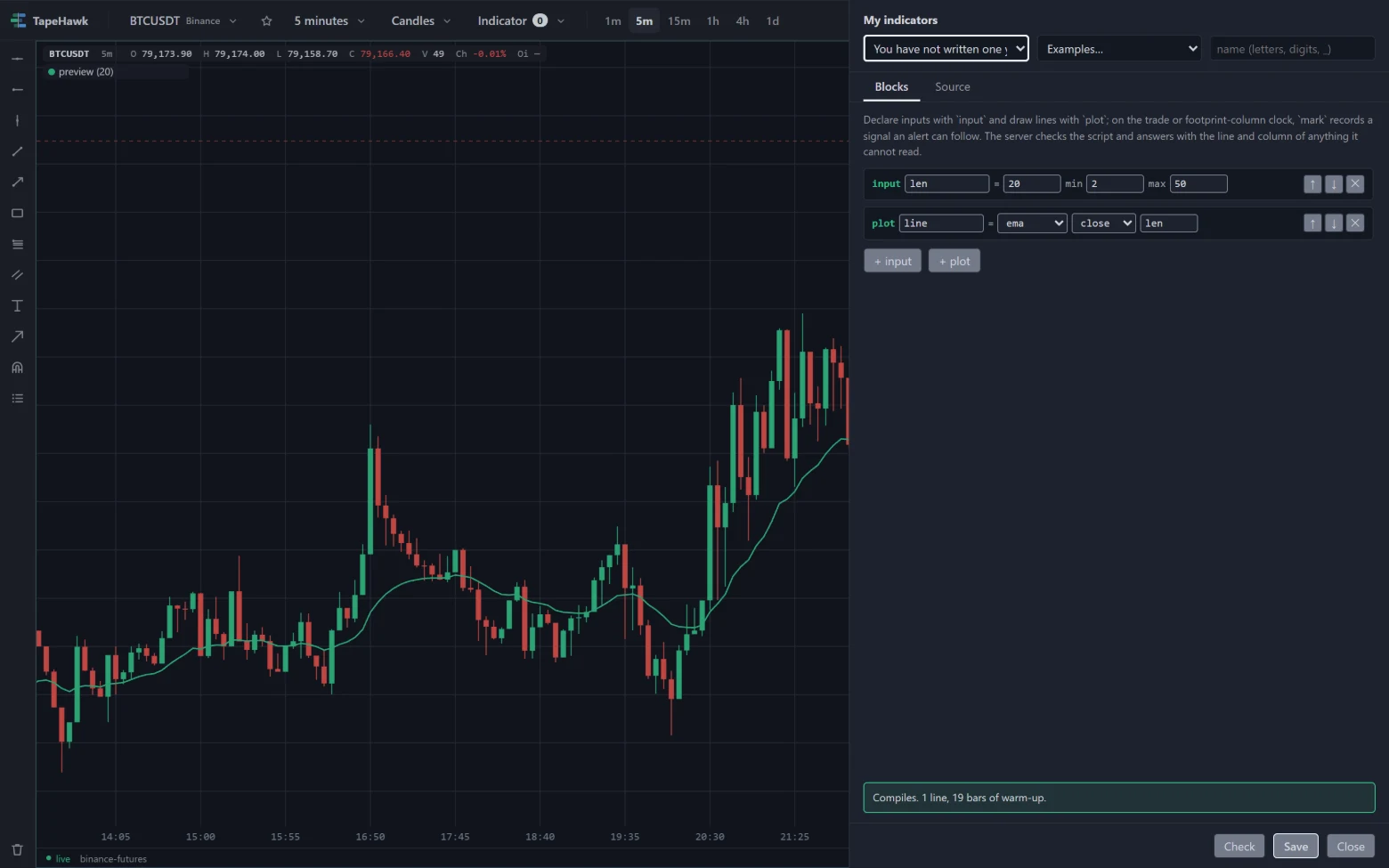
Across its top:
- The first list opens an indicator you saved. New indicator… means the script in the dialog is not a saved one.
- Examples… loads one of eight starter scripts — see Examples. Loading one replaces the script in the dialog.
- The name box holds the indicator's name: letters, digits and
_, up to 40 characters. - Delete appears when the name is one you have saved.
Below them, two tabs show the same script two ways:
- Blocks builds a simple indicator from rows of controls, without typing — see Block builder.
- Source is the script as text — see Source editor and the Language reference.
Switching tabs changes nothing in the script. While you work, TapeHawk checks the script after each pause in typing and draws it on the active panel, so you see the result on real data before you save. Closing the dialog takes that preview off the chart.
Saving and deleting
Save stores the script under the name in the name box, and is switched off while the box is empty. The server checks the script again; if it refuses, the reasons appear under the script and nothing is stored.
- Saving under a name you already use replaces that indicator. Unless it is the one you opened, the dialog asks before it overwrites the saved script.
- Panels drawing the indicator in this browser tab pick up the new version straight away; other tabs and devices get it the next time they load the chart.
- Delete asks before it removes the indicator. Panels that had it added keep an entry marked as deleted, which you can remove from the indicator menu. When the server does not take the deletion, the line at the foot of the dialog says so with its reason, and the indicator stays in the list.
The line at the foot of the dialog confirms what happened. When a save removes or renames a condition or signal that a rule of yours names, it says so instead: those rules no longer match anything in the script.
Your indicator on a chart
Saved indicators are listed in the indicator menu under My indicators. Add one as you would any indicator — see Indicators. Which panels offer it depends on its clock:
- A bar-clock script is offered on candles, footprint and heatmap panels.
- A
@printor@bookscript is offered on heatmap panels, which record the trades and the order book it runs on. Candles and footprint panels list it by name under My indicators with a note saying so. - A
@cellscript is offered on every panel kind, whether it plots a line, only marks, or both.
Once added:
- Where it is drawn. When every line the script plots is a price, the indicator is drawn over the price; otherwise it is drawn in a band — see Over the price, and in bands.
- Its name on the panel is the name you saved, followed by the values of its number inputs, so two copies with
different settings can be told apart. A script that declares a
markcan be on a panel only once, like TapeHawk's own indicators that mark events, and leaves Add once added. - Its settings. The gear opens the same dialog as for any indicator. The Parameters tab has
a control for each number, switch and list
inputin the script, within the bounds the script declares and the ones TapeHawk sets. A control is named as the script names its input, except for a few common names — such asmodeorstep— which show TapeHawk's own label for that word. A colour input is a colour control, starting at the colour the script declares. - How it looks. On a panel, a saved indicator draws with the colours, pens, shifts, fills and horizontal lines its script declares, as the editor's preview does. A line whose script names no colour takes one from a fixed set.
- While the editor has it open, panels drawing the indicator draw the script in the dialog instead — its current draft, at default settings, with its declared colours — until the dialog closes.
- Its marks. A
@printor@bookscript's marks are drawn on the heatmap in the shape and colours it declares, like the marks of TapeHawk's own order-flow indicators — see Marks on the heatmap. They are computed in your browser: a@printscript from the trades the panel already holds, a@bookscript from the moment it is added, because the order book is not recorded — so neither fills the heatmap's recorded history the way TapeHawk's own detectors do. A@cellscript's marks are drawn on candles, footprint and heatmap panels alike, in the same shapes and plates, on each column the panel has loaded once the column has closed. On a heatmap panel the columns are the heatmap's own, whose width follows the range, so those marks can differ from the bars a rule on the script is checked on. Pointing at a mark shows the tooltip on a heatmap panel only; candles and footprint panels have no mark tooltip.
A saved script that no longer compiles cannot be drawn. The menu lists it by name under My indicators with This indicator's script no longer compiles, so it cannot be drawn. Open the editor to fix it.
Alerts
An indicator you write can alert you through its marks, the same way the built-in signal indicators do.
- An
alertline is refused. The check and the save both reject a script that declares one, naming its line. On the trade or footprint-column clock the message suggests turning it into amark; on the order-book clock, whose signals cannot carry an alert yet, and on the bar clock, where amarkis refused too, it says the script can only draw here and that announcing needs the trade or footprint-column clock — seealert. - Scripts saved before that keep their
alertlines and keep drawing on panels. Opened in the editor, such a script is refused by the check, and cannot be saved again until the line the message names is deleted. The alert form does not list a script whose only announcement is analertline. - A
markwith acapappears in the alert form under My indicators, unless the script runs on the order book. A rule on it notifies you each time the mark is made, at most as often as itscapallows, and counts towards your rules — see Signal alerts. A mark without acapcannot be chosen.
Where to go next
- Block builder — make a moving average and a line without writing code.
- Source editor — the check, the error list and the preview.
- Language reference — everything a script can say.
- Examples — the eight starter scripts, explained.
- Limits and troubleshooting — what TapeHawk refuses, and why a script draws nothing.
AI desk
One press runs four analysts, a bull and a bear who argue, and a trader who decides BUY, SELL or HOLD for the selected market — what each role reads, what a verdict is and is not, the daily runs, and the history.
Block builder
Build a simple indicator from rows of controls — inputs and lines — and see the script it writes.