Signal alerts
Alerts on the signals order-flow indicators draw — which indicators have them, switching one on from the indicator, and building one in the alert form.
A signal alert tells you when an indicator draws one of its signals on a market — a sweep, an absorption, a stop cluster finishing, the order book tilting. There is nothing to compare and no level to type: the indicator decides what the signal is, how it is worded and how often it may fire, and the rule only chooses which signals to watch.
Which indicators have signals
| Indicator | Signals |
|---|---|
| Stop Volume | stopBuy, stopSell |
| Volume Spikes | spike |
| Absorptions | absorb |
| Sweeps | sweep |
| Stop Runs | run |
| Book Imbalance | tilt, zerocross |
| Liquidity Changes | added, pulled |
| Market Volume Imbalance | signal, signal2 |
| S/R Zones | zone |
| Absorption Zones | zone |
The two zone indicators are found on footprint bars once they close, so a rule on one watches bars of one timeframe — 1m, 5m, 15m or 1h — and alerts once a bar has closed. Standard indicators such as EMA or RSI draw no signal, so they take no alert; use a price alert for a level.
From the indicator
With the indicator on a panel showing a recorded symbol, open its settings (the gear) and the Alert tab. It lists the indicator's signals, each with a switch and how many times a minute it may reach you at most.
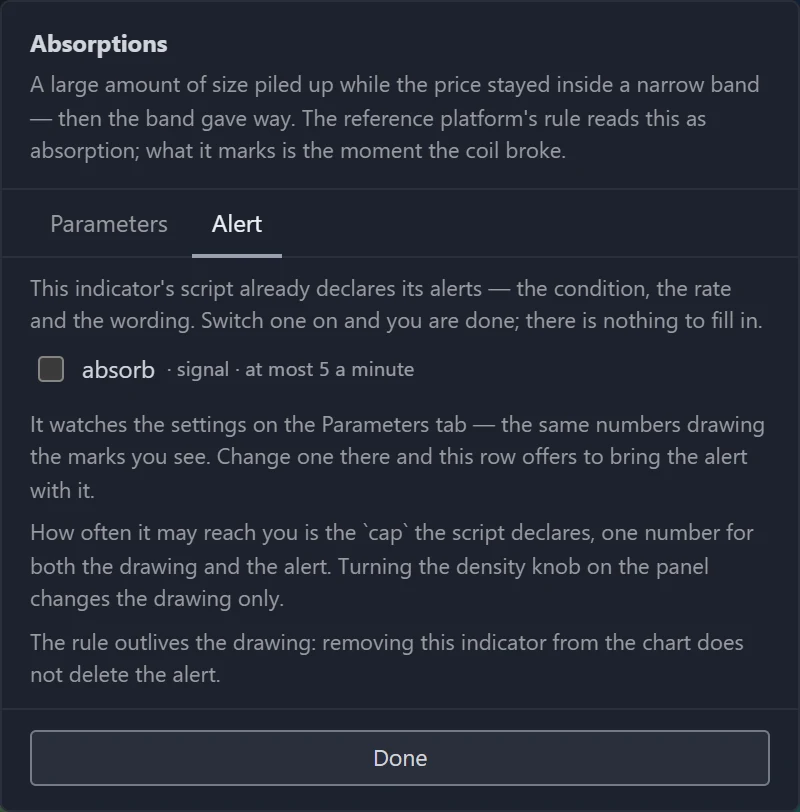
- Switch one on and a rule is created for that signal, on the panel's symbol, with the settings on the Parameters tab — the same settings drawing the marks you see. Switch it off and the rule is deleted.
- A zone indicator's rule also takes the panel's timeframe, which the tab names. A zone rule on a 1m panel is not listed on a 5m panel, and switching the signal on there makes a second rule, for 5m bars.
- Change a setting later and the rule keeps watching the settings it was made with; its row offers Match the panel to bring it up to date.
- Remove the indicator and the rule stays. Manage it from the Alerts tab.
A rule made here fires every time the signal is drawn, up to that per-minute limit.
The switch also counts a rule you made in the form, for the same indicator and symbol, that watches that signal, and each switch changes only its own signal:
- Switching it off takes that signal out of the rule and leaves the rule watching its other signals. A rule left watching nothing is deleted.
- Switching it on resumes a paused rule only when that rule watches this one signal alone. A paused rule from the form that also watches other signals stays paused, and a new rule is made for this signal.
- Match the panel brings a rule from the form to the panel's settings and keeps every signal it watches.
From the alert form
In the Alerts tab of the sidebar:
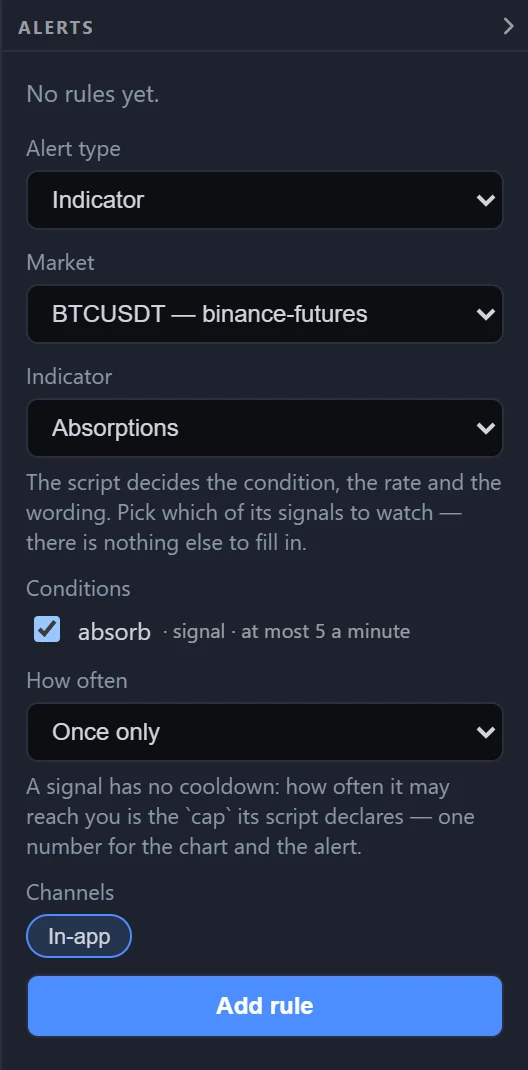
- Alert type — Indicator.
- Market — one of the recorded symbols.
- Indicator — the list groups the indicators above under Chart signals, and the ones you wrote under My indicators.
- Conditions — tick the signals to watch.
- For a zone indicator, Timeframe — the bars to find zones on: 1m, 5m, 15m or 1h. Other signals have no timeframe to choose: they happen at one moment on the tape.
- How often — Every time, Once only, or Once per bar, which means at most once a minute — or, on a zone indicator, at most once a bar of the chosen timeframe.
- Add rule.
A rule made in the form watches the indicator at its default settings, not those of any panel. To alert on the settings you have tuned, use the switch on the indicator instead.
How often, and how late
- A signal can reach you at most as many times a minute as its indicator allows. That figure is the indicator's default, whatever you set on a panel.
- Many signals are only known once they are over — a run has to stop, a line has to come back from its peak — so an alert arrives a little after the moment it describes, and names that moment.
- A mark an indicator holds back — drawn as an outline on the chart — sends no alert.
- Order-book signals, from Book Imbalance and Liquidity Changes, need TapeHawk to be running order-book alerts. When it is not, switching one on is refused with a message that says so.
Your own indicators
Indicators you write appear in the form under My indicators when they declare a mark, except those
that run on the order book; a script whose only announcement is an old alert line is not listed. Only a signal whose
mark declares a cap can be chosen. A rule on one of your signals
notifies you like any other signal rule, at most as often as its cap allows; one on a script that runs on footprint
columns also asks for a Timeframe. See Custom indicators.