Alerts overview
What an alert rule is, where to create one, how the list of rules works, and how often a rule may fire.
An alert rule asks TapeHawk to watch a market for you and tell you when something happens: price crossing a level, or an order-flow indicator drawing a signal. Rules run on TapeHawk's servers, so they keep watching when the chart is closed; what they find arrives in the bell and, if you allow it, as desktop notifications — see Notifications.
Before you start
- A confirmed account. Alerts belong to confirmed accounts — see Access levels. The bell and the chart's right-click menu appear only for them, and the sidebar's Alerts tab shows anyone else a sentence saying to sign in or confirm their email.
- A recorded symbol. Alerts watch only the symbols TapeHawk records in full — see Recorded symbols and live-only symbols. The form in the Alerts tab lists only those, and so does the form opened by right-clicking the chart; on a live-only symbol its menu item is greyed out with a sentence saying why.
- Room on your account. An account holds 20 rules, and 3 of them can be switched on at once. The rules list says how many are on and, once you get close, how many are used. A form saved past either limit is refused with a message giving it: every rule counts toward the 20, paused ones included, while a paused or expired rule does not count toward the 3 — pause one to switch on another. A rule that has already fired once and stopped still counts until you pause or delete it.
- A desktop. The phone layout of the chart has no Alerts tab, bell or right-click menu, so rules are created and managed on a wider screen — see On a phone.
Three ways to create one
- The Alerts tab of the sidebar ends with a form for any kind of rule — see Price alerts and Signal alerts.
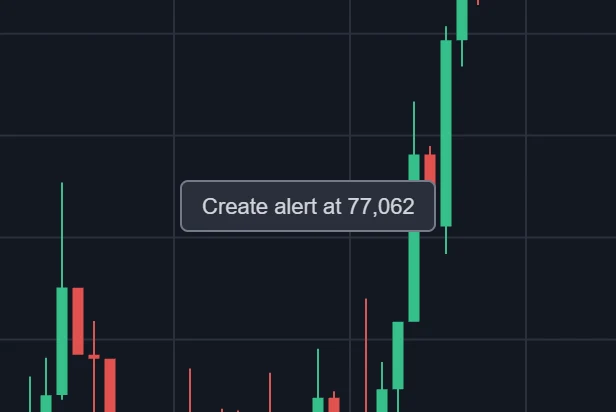
- Right-click the chart on a desktop: the menu offers Create alert at the price under the pointer, and opens the same form set to that price.
- An indicator's settings: for an indicator that draws signals, the Alert tab has a switch for each of them — see Signal alerts.
A new price rule starts watching within about 15 seconds of being saved. A signal rule is picked up as quickly, but when no chart is already using the indicator at those settings, TapeHawk starts it from nothing, and its first signal can take a while longer.
The list of rules
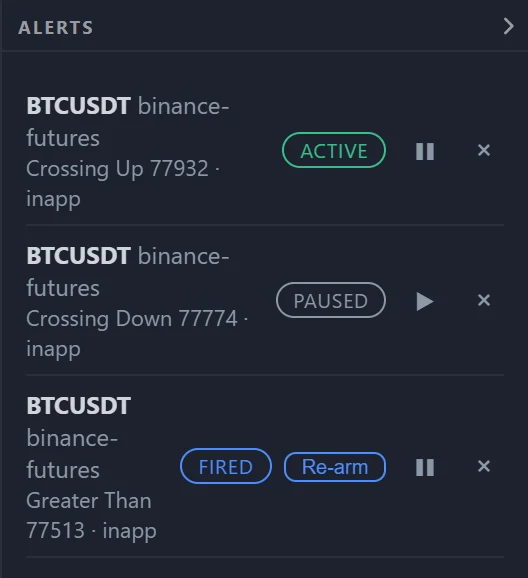
The Alerts tab lists every rule on your account, whichever symbols your panels show. Each row names the market, what the rule watches and its channel, with a status:
| Status | Meaning |
|---|---|
| Active | Watching the market. |
| Paused | Switched off with the pause button; resume it to watch again. |
| Fired | A rule set to fire once has fired. Re-arm sets it watching again. |
The pause button (❚❚) switches a rule off and the play button (▶) back on. The × deletes it straight away, without asking. The list refreshes itself, so a rule that fires, or one changed in another tab, updates on its own within half a minute.
A rule cannot be edited from the list. Apart from moving a price rule's line on the chart, change a rule by deleting it and creating a new one.
A rule is independent of the chart. Removing an indicator, changing a panel's symbol or closing the page does not change it; delete it here when you no longer want it. Price rules also appear on the chart as lines — see Price alerts.
How often a rule fires
Every rule has a How often setting:
| Choice | What happens |
|---|---|
| Every time | Fires each time the condition happens. |
| Once only | Fires the first time, then shows Fired until you re-arm it. The default. |
| Once per bar | Fires at most once per bar. A price rule asks which timeframe the bars are; a signal rule counts a bar as one minute, except on a zone indicator, whose bars are the rule's own timeframe. |
| Once per bar close | Listed, but switched off for price rules and signals, with a note saying why: price rules are checked on every trade, and a signal has no candle to close. |
On top of that, a price rule fires at most once a minute, and a signal rule at most as often as the indicator allows — see each page.
Footprint
The footprint drawn over the heatmap — each bar a block of bid and ask volume by price, laid across the stretch of the heat field its trades printed in.
Price alerts
Alerts on a price level — the five conditions, creating one from the form or by right-clicking the chart, and moving or deleting it on the chart itself.