Symbols and venues
Find a symbol, tell venues apart, understand why some symbols have no heatmap, and keep a list of favourites.
Venues
A symbol always belongs to a venue — the exchange market its trades and order book come from. TapeHawk currently carries Binance USDⓈ-M perpetual futures.
The venue is printed wherever a symbol is: under the symbol in the toolbar, beside each row of the symbol list and the favourites table, and in the Details tab of the sidebar, which shows both the exchange (Venue) and the exact market (Market).
Find a symbol
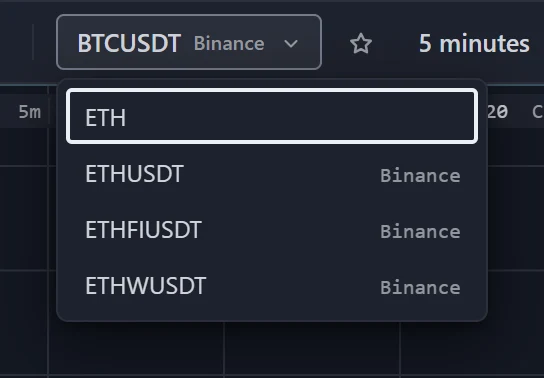
- Click the symbol box near the left of the toolbar (on a phone: ☰ → Instrument).
- Type any part of the name.
BTCfinds BTCUSDT;USDTfinds every symbol. - Click a row. The selected panel switches to that symbol and keeps its chart type, timeframe and indicators.
The list shows up to 80 rows at a time, so typing is the way to reach a symbol further down. You can also type a full symbol and press Enter. If it is only listed on the other venue, the panel moves to that venue. If TapeHawk does not carry it at all, the panel moves to another instrument and a message names the symbol that is unavailable — the same happens when a saved layout or a link names a symbol no longer listed.
Recorded symbols and live-only symbols
TapeHawk records a set of symbols in full: their trades, their bars and their order book. Every other symbol in the list is live-only — its trades stream to the chart as they happen, but nothing about it is recorded, its order book included. When a panel needs a live-only symbol's past, TapeHawk asks the exchange: candle history comes back in full, while order-flow history — the volume at each price and which side traded it — is rebuilt from the exchange's recent trades and reaches back only about half an hour. That difference decides what a panel can show:
| Recorded symbol | Live-only symbol | |
|---|---|---|
| Candles, with history | ✓ | ✓ |
| Footprint | ✓ with history | ✓ the last half hour or so, then live |
| Order-flow indicators on candles and footprint | ✓ with history | ✓ the last half hour or so, then live |
| Heatmap | ✓ with history | ✓ live from when you open it, no history |
| Alerts | ✓ |
The list does not label the two kinds; the recorded symbols are its first few rows.
A heatmap on a live-only symbol is fed differently from everything else on the page. TapeHawk keeps no order book for such a symbol, so your browser reads the book directly from the exchange — Binance or Bybit — and the heatmap starts from the moment you open the panel. There is nothing to scroll back into, and closing the panel or reloading the page starts it again from empty. On a desktop the panel's status strip says so:
live from when you opened it — order book read directly from Binance Futures, no history
Because that one connection goes from your device to the exchange rather than through TapeHawk, it depends on your own network reaching the exchange. Where it cannot — some countries and some office networks block exchanges — the heatmap stays empty and says why, while the candles, trades and footprint of the same symbol keep working, because those do come through TapeHawk:
cannot reach Binance Futures from your network — the heatmap of this symbol needs a direct connection to the exchange; candles and trades are unaffected
A Bybit heatmap is shallower than a Binance one: Bybit publishes 200 price levels on each side of the book. That is true of recorded Bybit symbols too.
Alerts, too, can only watch recorded symbols: the form in the sidebar's alerts tab and the one opened by right-clicking the chart offer only those, and on a live-only symbol the right-click menu's alert item is greyed out.
Favourites
Favourites are a short list of the symbols you watch, saved to your account and shared by every device you sign in on.
- Add or remove a symbol with the star beside the symbol box in the toolbar (on a phone, the star in the top bar). A filled star means it is on your list.
- See the list in the Favourites tab of the sidebar. Each row shows the symbol and venue, the last price and the change over 24 hours; the row of the selected panel is highlighted. Click a row to switch the selected panel to it, or use its remove button.
- Filter the list with the box at its top.
- A symbol the venue has stopped listing stays on your list, dimmed and no longer clickable; hovering it says This venue no longer lists this symbol. Remove it when you no longer need it.
The list holds up to 50 symbols. Adding one more shows
Your favourites list is full — remove one to add another.